Trigger Messages
Trigger Messages are automatic messages sent by the bot when a fan likes content or comes online. Their purpose is to gently bring the fan back into the conversation and increase engagement.
The feature includes timing restrictions to prevent excessive bot activity.
💡 Before sending a Trigger Message, the bot checks:
- whether any bot messages have been sent within the last 4 hours
- whether any Trigger Messages have been sent within the last 8 hours
If both conditions are met, the bot sends a Trigger Message.
How Messages Are Selected
Section titled “How Messages Are Selected”- messages are selected randomly from the list of added Trigger Messages
- priority is given to messages that have not been sent before
- once all messages have been used, the cycle starts again
Setup Steps
Section titled “Setup Steps”Step 1. Open the model → Trigger Messages tab
Section titled “Step 1. Open the model → Trigger Messages tab”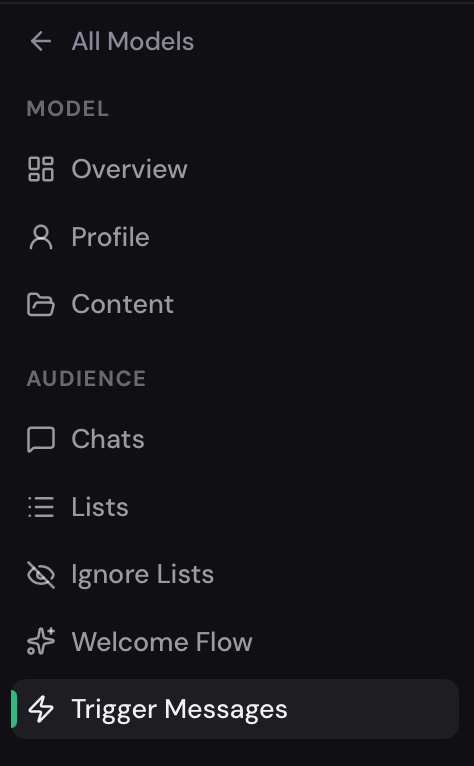
Step 2. Add Trigger Messages
Section titled “Step 2. Add Trigger Messages”There are two ways to add Trigger Messages.
Option 1. Import
Section titled “Option 1. Import”Click Import to select messages from the available templates.
- you can use ready-made messages
- you can use them as a base and edit them to fit the model
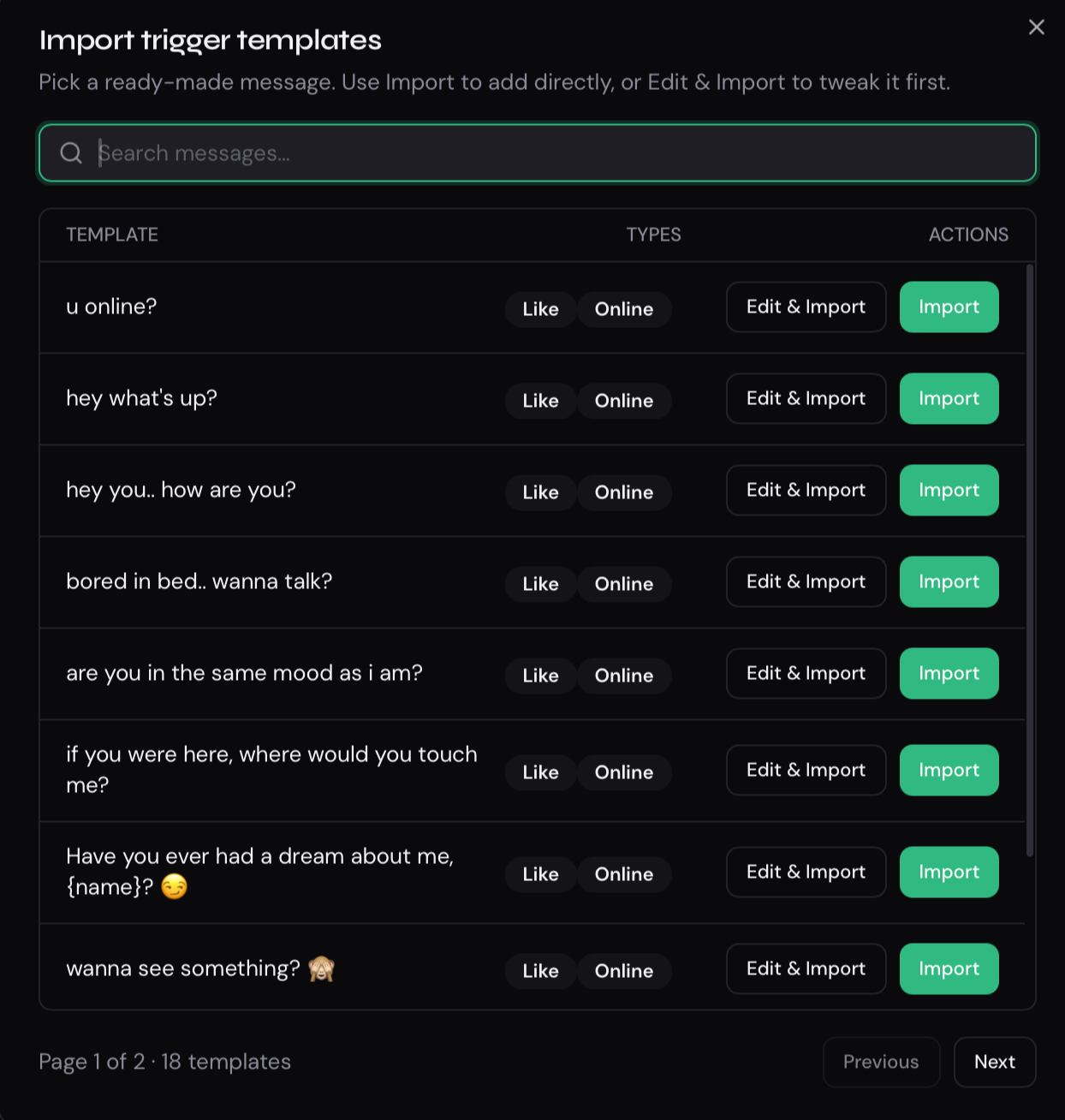
When you click Import, the selected Trigger Message is automatically added to the list.
Option 2. Add
Section titled “Option 2. Add”Click Add to create your own message.
Available options:
- add a text-only message
- add media content
- when adding media, you can:
- set a price (if the content is paid)
- add a free preview
- text and media can be used together or separately
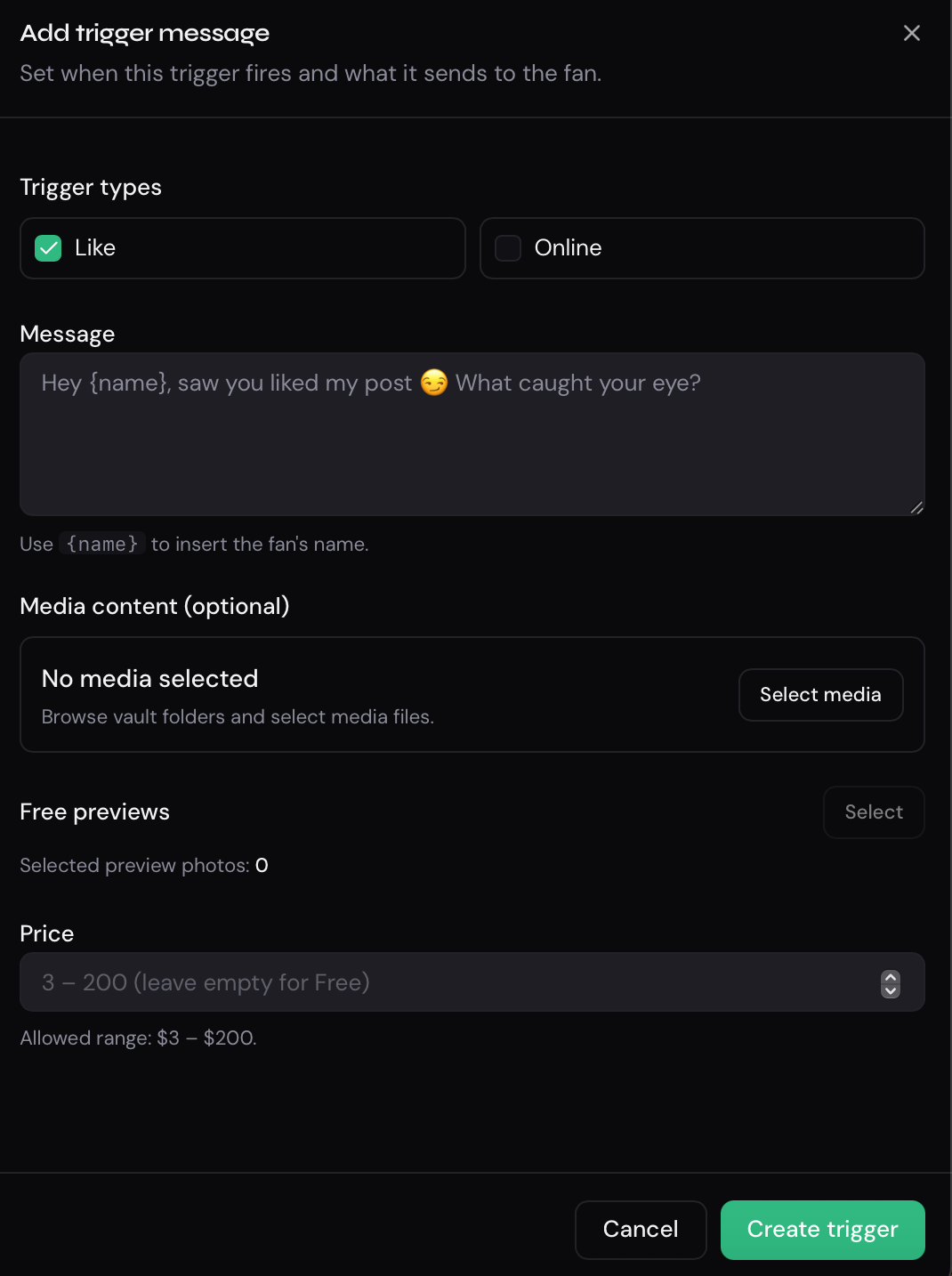
After completing the setup, click Create Trigger. The new Trigger Message will automatically appear in the list.
Step 3. Enable the Feature
Section titled “Step 3. Enable the Feature”After adding enough Trigger Messages, enable the feature using the Trigger Messages toggle.

Before activation, it is recommended to prepare:
- 4–5 text-only messages
- 1–2 messages with media (or more, if content is available)
This allows the bot to use a variety of messages and avoid repetitive interactions.
Once enabled, the bot will automatically react to likes and online activity, sending Trigger Messages according to the configured restrictions.