Content Requests
What are content requests?
Section titled “What are content requests?”When a fan asks for content and the AI can’t match the request to any existing folder in the content library, it creates a content request . This is the AI flagging a gap in your content library that needs human attention.
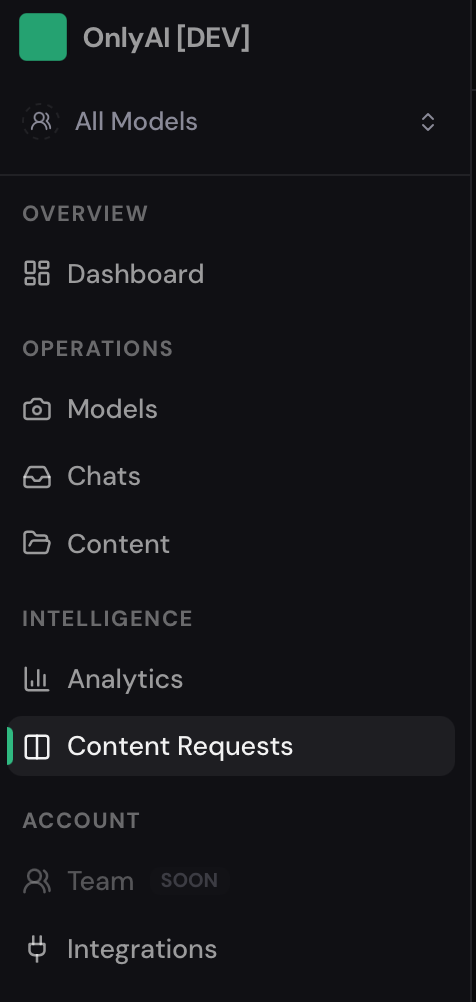
Access content requests via content request in the agency sidebar (under Intelligence).
Why this matters
Section titled “Why this matters”Unresolved content requests mean the AI is leaving money on the table — a fan expressed buying intent but couldn’t be served. Reviewing and resolving these regularly is one of the highest-value tasks in the dashboard.
The content requests list
Section titled “The content requests list”The page shows a list of pending requests, each representing a fan’s content ask that couldn’t be fulfilled. Each entry shows:
- Fan identifier — which fan made the request.
- Model — which model the request came from.
- Request description — what the fan asked for.
- Timestamp — when it happened.
Use the Refresh button to pull the latest requests. Navigate between pages using the pagination controls.

Resolving a request
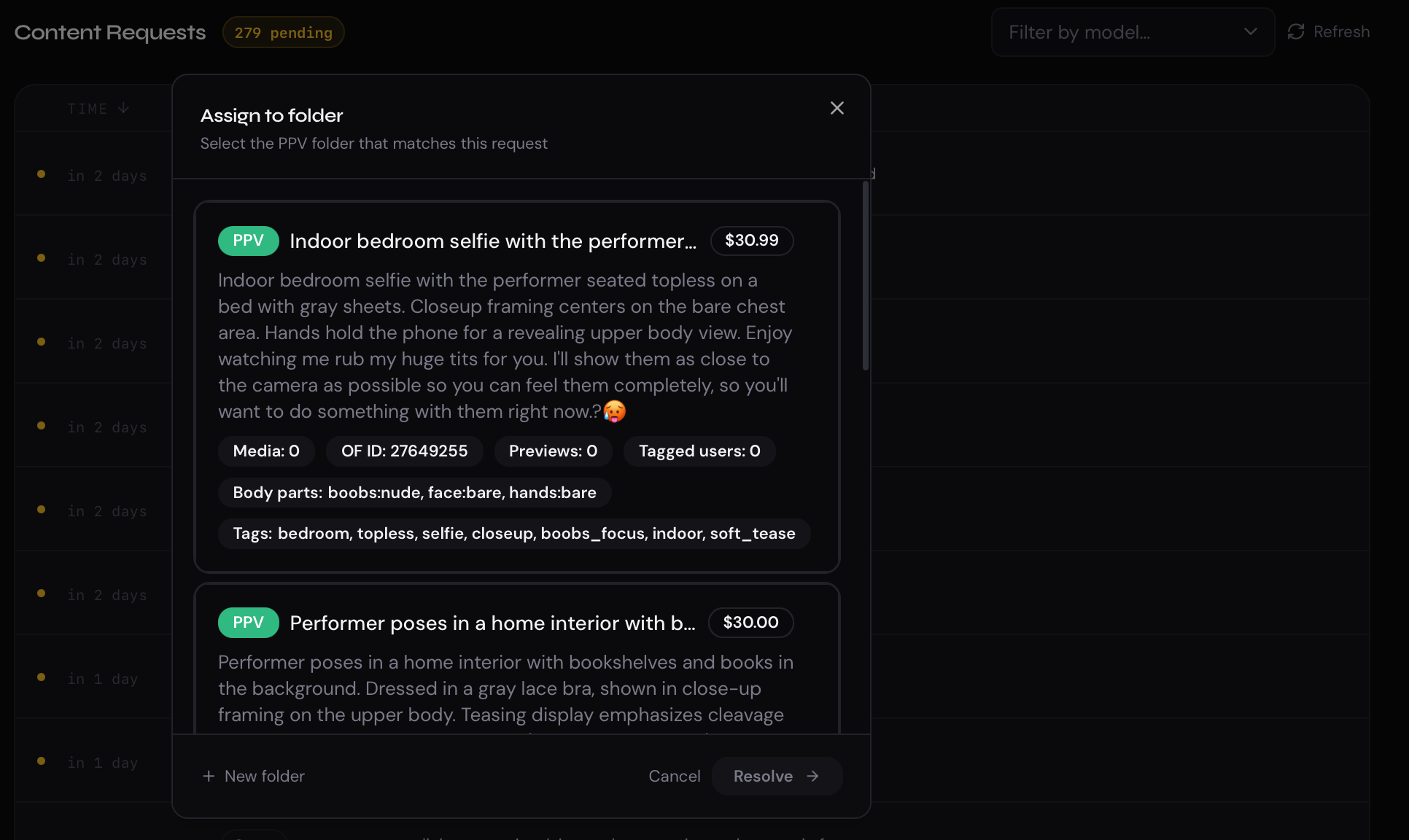
Section titled “Resolving a request”Resolving a request means pointing the AI to the right folder so it can fulfill similar asks in the future.
- Find the request you want to resolve and click Resolve.
- In the sheet that opens, either:
- Pick an existing PPV folder — select a folder from your content library that matches what the fan asked for.
- Create a new folder — if no suitable folder exists, create one on the spot. This opens the same folder creation sheet as the content library.
- Confirm your selection.
The AI will use this folder for similar requests going forward.
Skipping a request
Section titled “Skipping a request”If a request isn’t actionable (e.g. the fan asked for something outside the model’s content scope), click Skip to dismiss it without resolving. Skipped requests are removed from the queue.
Opening the conversation
Section titled “Opening the conversation”Each request has an Open Chat button that takes you directly to the fan’s conversation thread. This lets you read the full context of the request — what the fan said, how the AI responded, and what happened next — before deciding how to handle it.