PPV Folders
What are PPV folders?
Section titled “What are PPV folders?”PPV (pay-per-view) folders are collections of content that the AI sends to fans as paid offers. When the AI detects that a fan is ready to buy, it selects a folder and delivers the content at the configured price.
Creating a PPV folder
Section titled “Creating a PPV folder”- Navigate to the Content tab for the model.
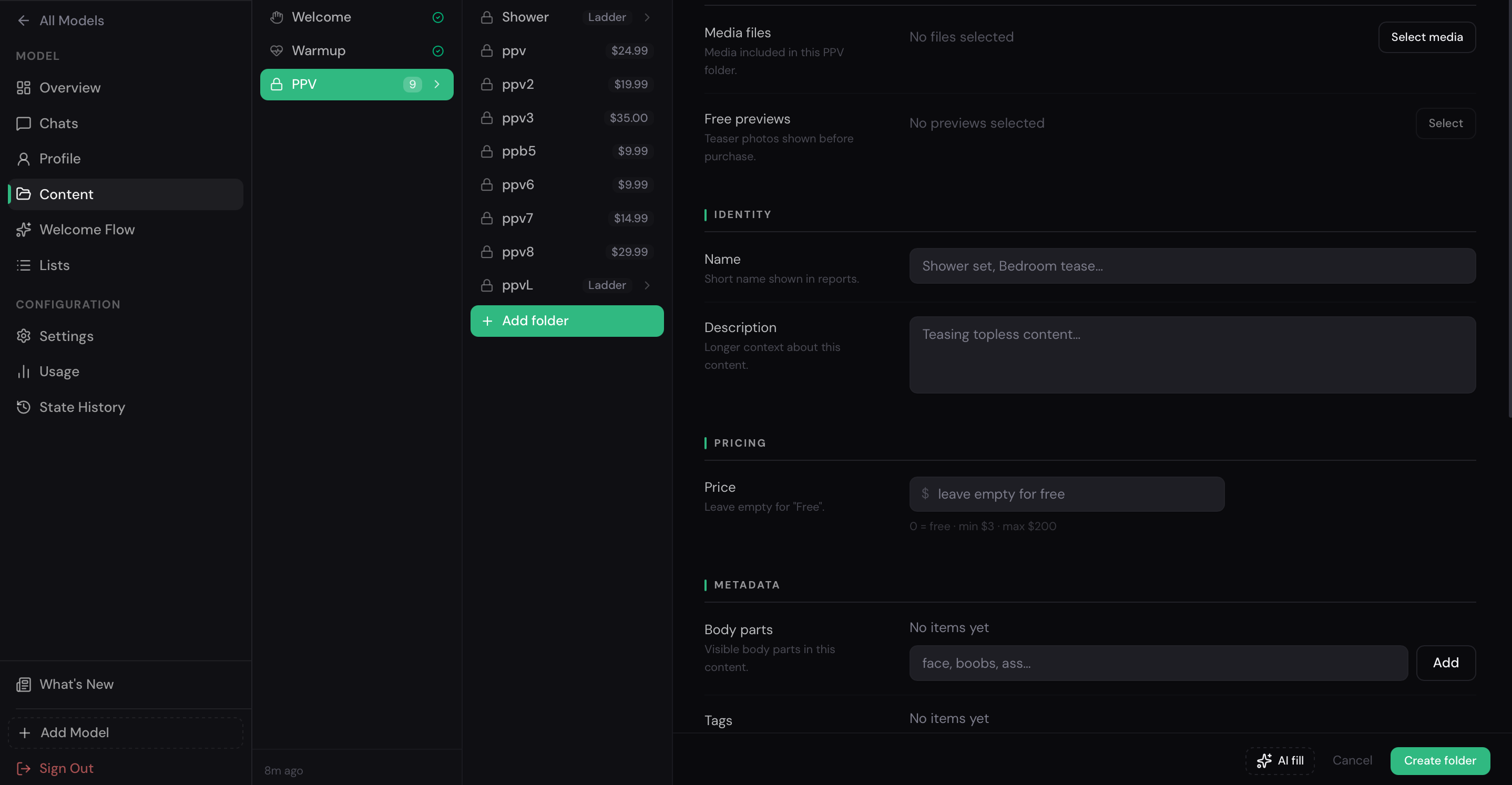
- Inside the PPV group, click Add folder.
- In the sheet that opens, fill in:
- Folder name — a descriptive internal label (fans don’t see this).
- Select media — the OnlyFans Vault list containing the media for this folder.
- Price — how much to charge the fan for this content.
- To automatically fill in the folder description and other settings, click the AI Fill button. AI will analyze the selected content and automatically populate the required fields. After generation, it is recommended to review the result and make any necessary adjustments.
- Click Create Folder.
The folder is now available for the AI to use.
Pricing ladder
Section titled “Pricing ladder”You can configure a pricing ladder within the PPV group — a sequence of folders at different price points. The AI uses this ladder to present escalating offers to fans over time, starting with lower-priced content and moving up.
To set up a ladder, create multiple PPV folders and arrange them in order of price.

Subfolders
Section titled “Subfolders”Each PPV folder can have subfolders to further organize content variations (e.g. by theme, format, or intensity). The AI picks from available subfolders based on context.
Click inside a folder to see its subfolders and add more with the + button.

Editing or deleting a folder
Section titled “Editing or deleting a folder”- Edit — change the name, linked Vault list, or price.
- Delete — remove the folder. This doesn’t delete the content from your OnlyFans Vault, only from the OnlyAI library.
How the AI selects PPV content
Section titled “How the AI selects PPV content”When Sales is turned on for a model, the AI considers the PPV folder structure when deciding what to offer a fan. It uses the pricing ladder and any fan context (e.g. previous purchases) to pick the most appropriate folder.
→ To enable sales, see Model Controls.