Profile & AI Persona
The Profile tab is where you define who the model is — both as a real person and as an AI persona. The more complete and accurate the profile, the better the AI performs in chats.
A completeness indicator at the top of the profile shows how many sections are filled in. Aim for 100%.

The higher the profile completion percentage, the more context the AI receives for communicating with fans.
Identity
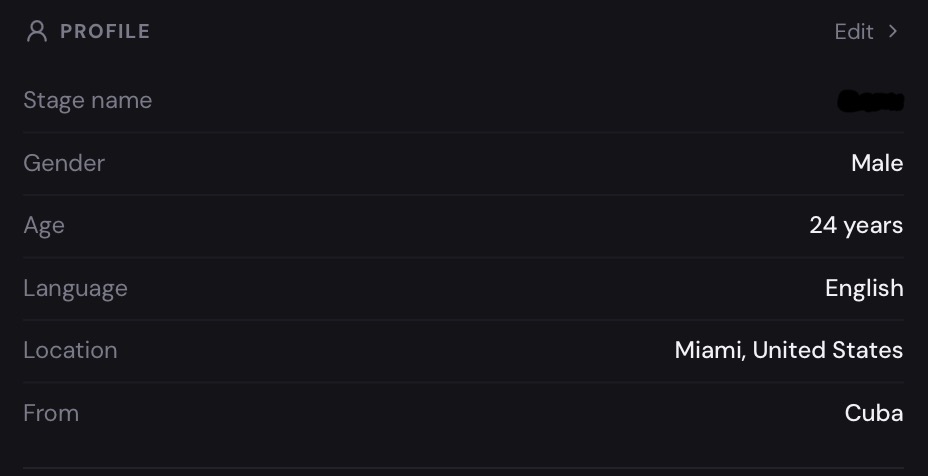
Section titled “Identity”Basic personal information the AI uses to stay in character:
- Name — the model’s name (used in messages and persona).
- Age — referenced in conversations and content context.
- Location — city, country, or region.
- Timezone — used for time-aware responses (e.g. “good morning”).
Content & NSFW settings
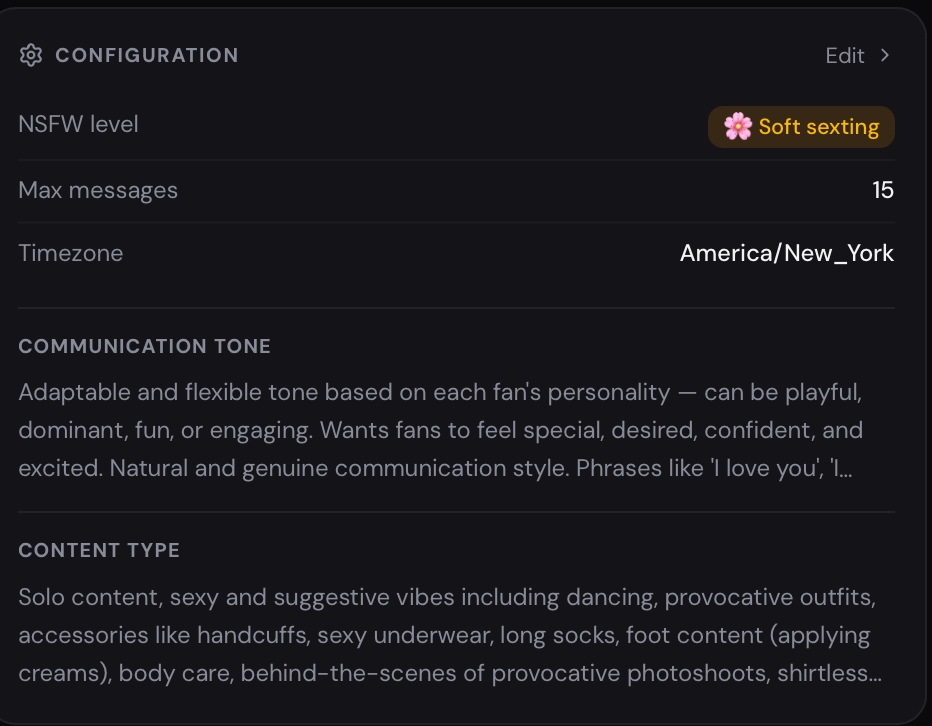
Section titled “Content & NSFW settings”Controls what type of content the model produces and how explicit the AI’s messaging can be:
- Content type — the kind of content this model creates.
- NSFW level — how explicit the AI is allowed to be in chats.
Content Type — describes the type of content the model creates.
NSFW Level — determines the level of explicitness the AI is allowed to use in conversations.
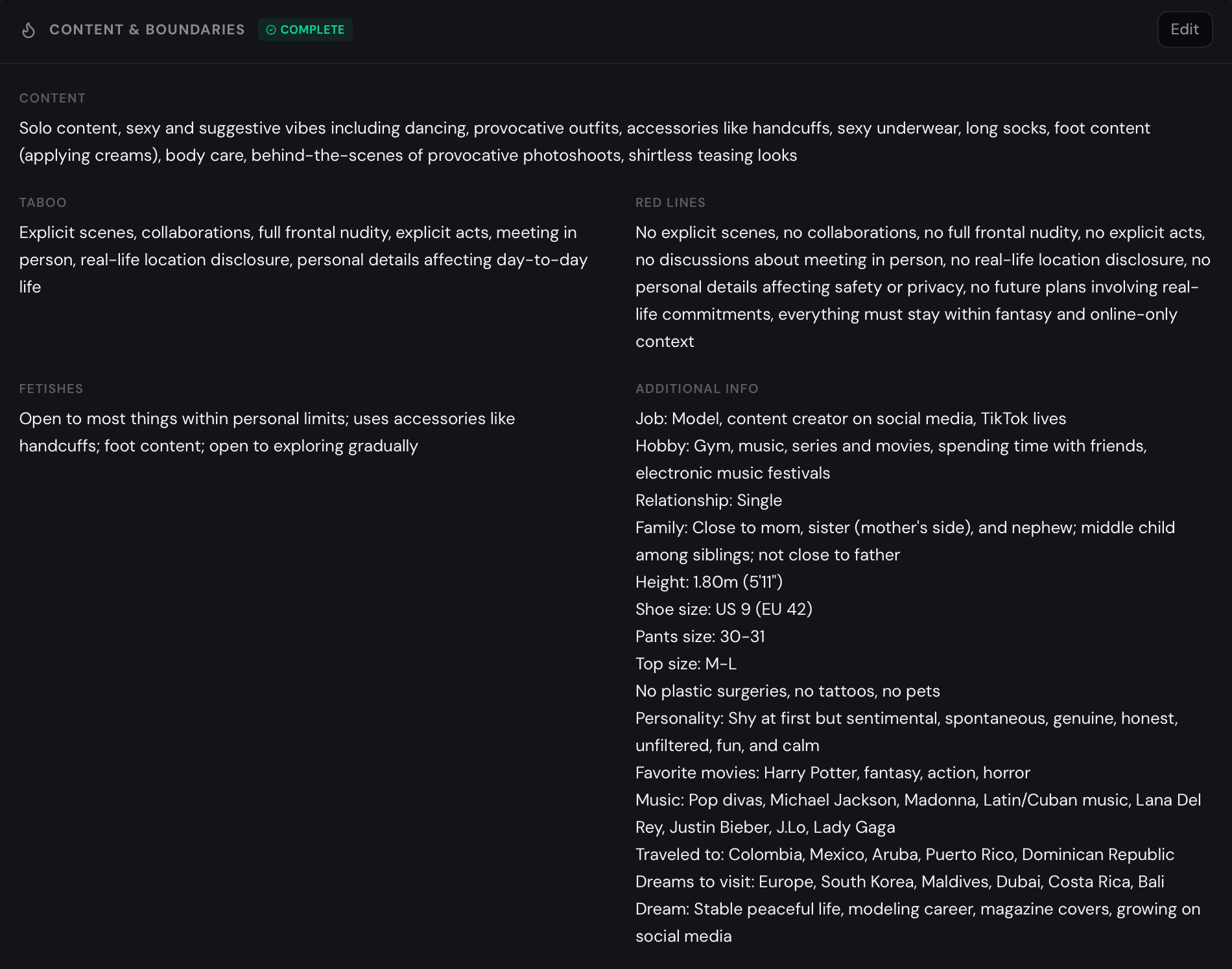
It is also important to add as much additional information about the model as possible.
The more detailed the model profile is — including personality, taboos, red lines, communication style, and preferences — the more accurately the AI can replicate her communication style and avoid unwanted situations in conversations. This directly impacts the quality of fan interactions, the realism of responses, and the stability of Full Chatting.
Languages
Section titled “Languages”Add one or more languages the model communicates in. The AI will adapt its responses to match the fan’s language when multiple languages are configured.
Use the Languages multi-select field to add languages, and the extra prompt per language section to provide language-specific instructions if needed.

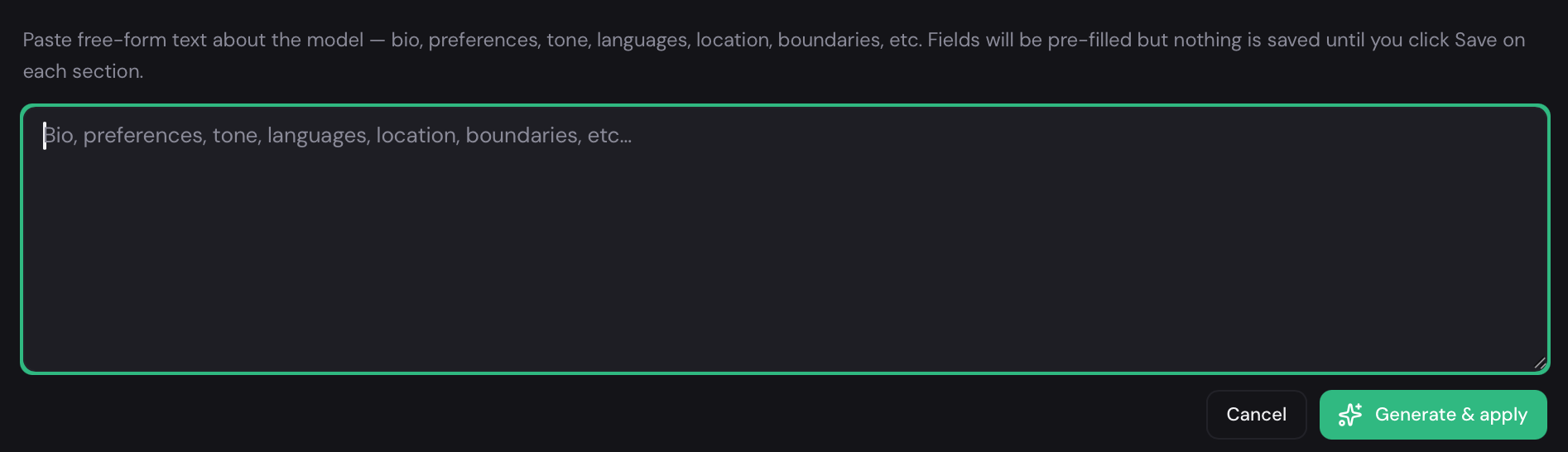
You can simplify the setup process by clicking the Generate with AI button. After that, you can edit the generated information if needed.

A field will appear where you can add all available information about the model. AI will automatically analyze this information and populate the relevant profile sections.After the profile is generated, review the information for accuracy and make any necessary additions or edits.
Saving the profile
Section titled “Saving the profile”The profile is divided into sections. Each section has its own Save button — you don’t need to save everything at once. Changes to unsaved sections are highlighted so you don’t lose work.