Content Library
What is the content library?
Section titled “What is the content library?”The content library is a folder-based media management system connected directly to your OnlyFans Vault. It’s where you store and organize all the media the AI uses to send to fans — PPV content, welcome messages, and warmup drips.
Access it via Content in the model sidebar.
Library structure
Section titled “Library structure”Content is organized into three top-level groups:
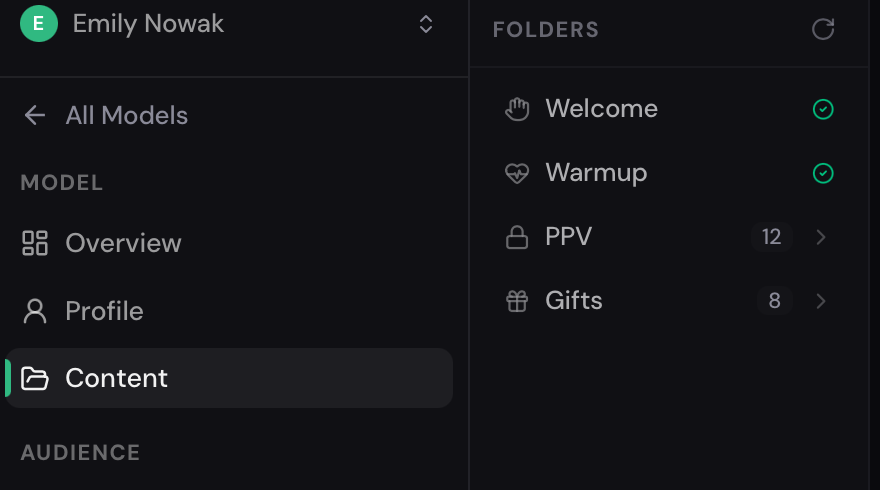
PPV — paid content that AI sends to fans as PPV offers.
Welcome — media files sent to new subscribers as part of the welcome message.
Warmup — media files used to engage and warm up fans before sending paid content.
Gifts — free content that can be sent as a thank-you for tips or as part of farewell messages.
Each group contains folders (and optionally subfolders) that map to collections of media from your OnlyFans Vault.
Vault lists
Section titled “Vault lists”OnlyAI pulls media from your connected OnlyFans Vault. When you create or edit a folder, you select which Vault list it should draw from. This keeps your OnlyFans Vault organized and lets OnlyAI serve the right content at the right time.
Multi-column “finder” UI
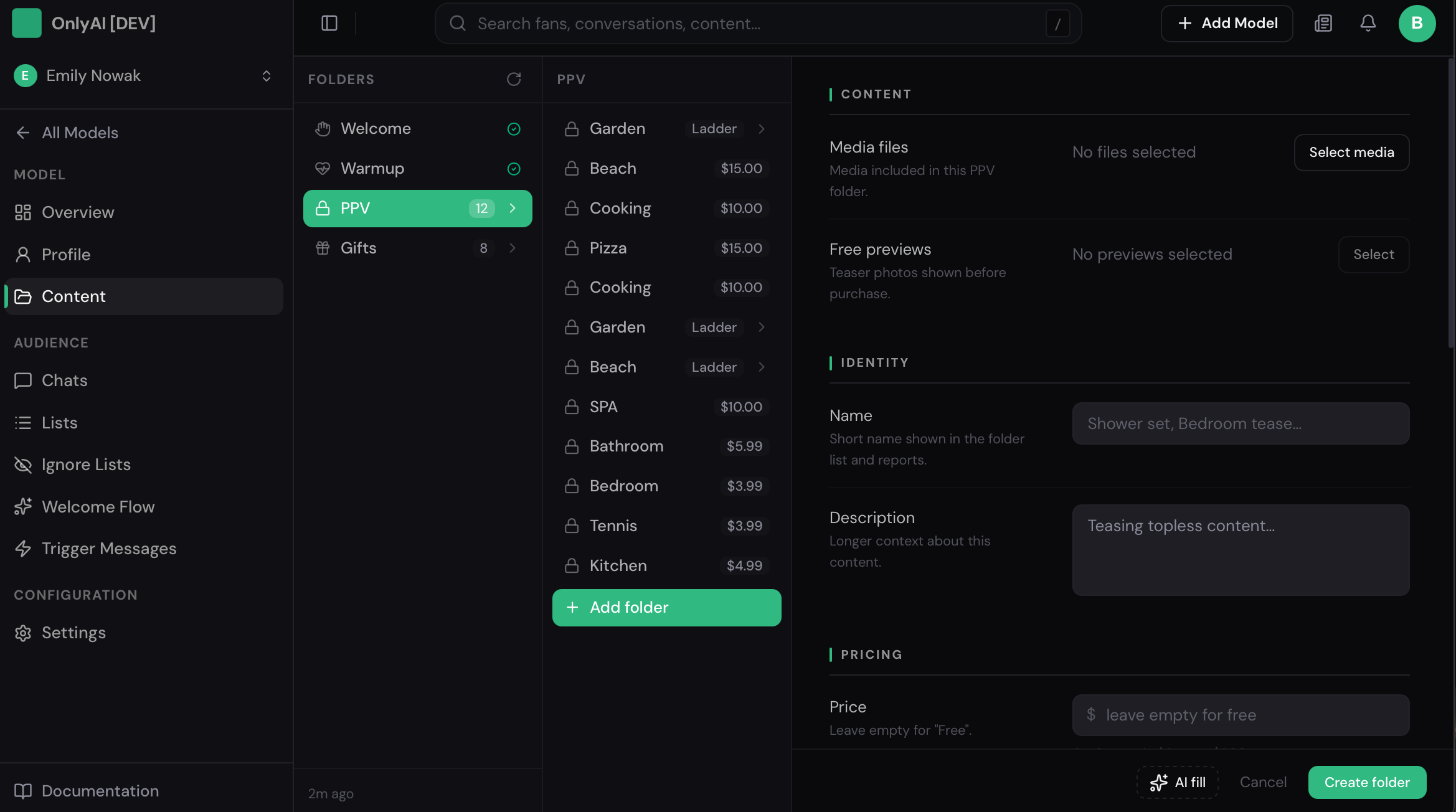
Section titled “Multi-column “finder” UI”The content page uses a multi-column layout — similar to a macOS Finder window — to let you navigate groups → folders → subfolders without losing context. Click a folder to see its subfolders or contents on the right side.
Creating a folder
Section titled “Creating a folder”Click the + or Create folder button within a group. A sheet will slide open where you can:
- Name the folder.
- Choose a Vault list to link.
- Set a price (for PPV folders).
- Configure any pricing ladder settings.
Editing a folder
Section titled “Editing a folder”Click the ⋯ menu on a folder to edit its name, linked Vault list, or pricing. Changes take effect immediately for the AI’s next delivery attempt.
Video Guide PPV Setup: PPV Folder, On-Request PPV Folder, Ladder Folder | OnlyAI
Section titled “Video Guide PPV Setup: PPV Folder, On-Request PPV Folder, Ladder Folder | OnlyAI”🔗 https://youtu.be/wqln5WSExds?si=AAeuO3BFTy4LeLmk