Dashboard Overview
Layout
Section titled “Layout”The dashboard is split into three areas:
- Sidebar (left) — navigation, model switcher, and account controls.
- Top bar — sidebar toggle, search, theme switch, and notifications.
- Main area — the content for whichever page you’re on.
Sidebar navigation
Section titled “Sidebar navigation”The sidebar has two modes depending on where you are in the app.
Agency mode (default)
Section titled “Agency mode (default)”When you’re at the top-level dashboard, the sidebar shows agency-wide sections:
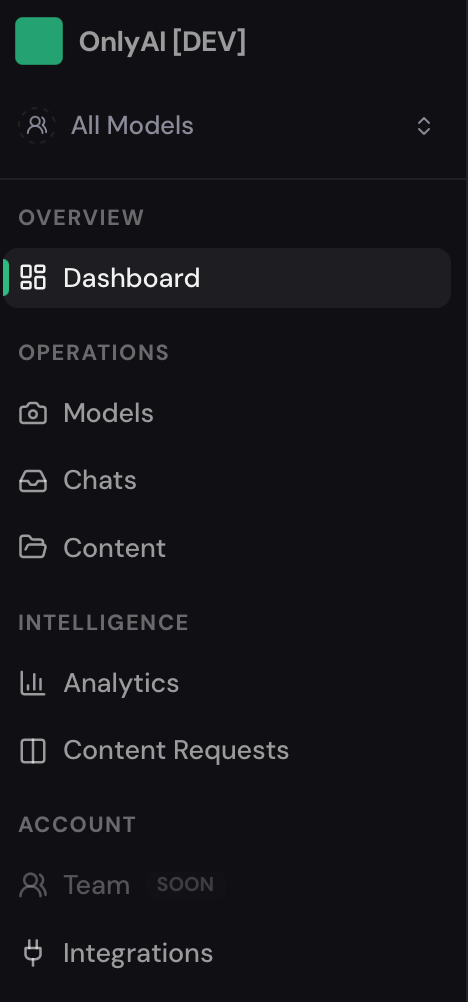
OVERVIEW: Dashboard
OPERATIONS: Models, Chats, Content
INTELLIGENCE: Analytics, Content Requests
ACCOUNT: Team, Integrations
Model mode
Section titled “Model mode”When you open a specific model, the sidebar switches to model-specific tabs:
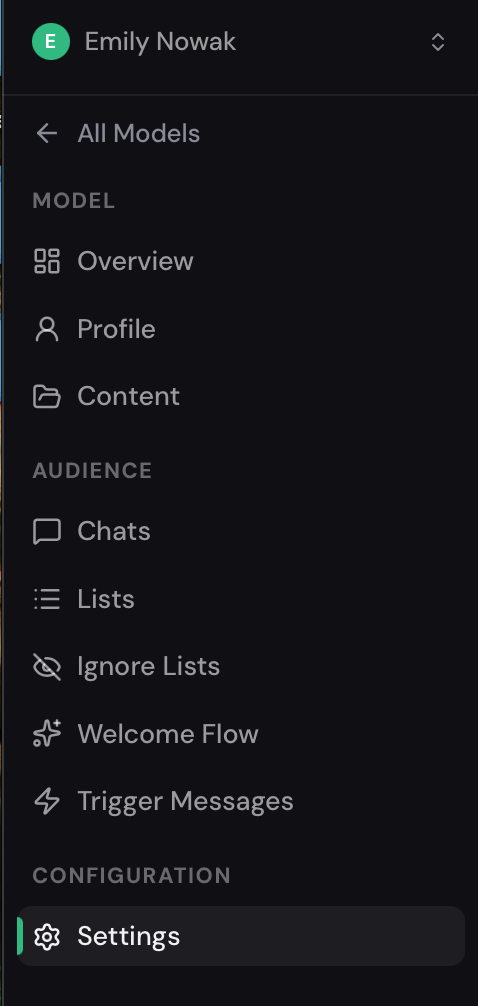
Overview — the main model dashboard with key metrics, statistics, sales performance, and general account information.
Profile — configure the model profile, AI settings, automation parameters, limits, and account details.
Content — manage content folders, PPV content, Welcome content, Warm-Up materials, Ladder folders, and Gift folders.
AUDIENCE
Section titled “AUDIENCE”Chats — view and manage fan conversations, monitor AI performance, and track user interactions.
Lists — create and manage fan lists and audience segments.
Ignore Lists — configure lists of users that the AI should ignore and exclude from automated communication.
Welcome Flow — set up automated welcome message sequences for new subscribers.
Trigger Messages — configure automated messages that are sent in response to specific fan actions or events.
CONFIGURATION
Section titled “CONFIGURATION”Settings — main model settings and configuration options.
Model switcher
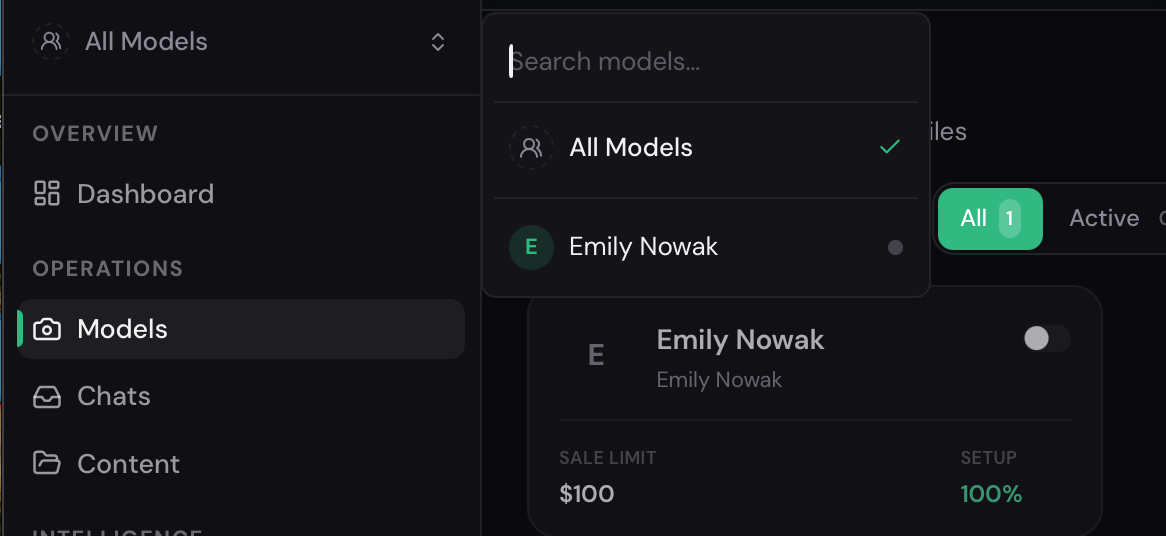
Section titled “Model switcher”At the top of the sidebar you’ll see the current model name (or “All Models”). Click it to:
- Search and switch to a different model.
- Return to the agency view (All Models).
Top bar
Section titled “Top bar”
Sidebar Toggle — allows you to collapse or expand the left navigation menu.
Search Bar — used to quickly search for fans, conversations, and content across all models.
Add Model — creates and connects a new model to the system.
Notifications — displays system notifications and important platform events.
User Avatar — displays the current user’s profile and provides access to account settings.
Model Filter (All Models) — allows you to select a specific model or view data across all models.
Date Range Filter (Last 30 Days) — allows you to select a time period for displaying statistics and analytics on the Dashboard.
Dashboard — the main analytics page providing an overview of key metrics and performance indicators for the selected models.
Main dashboard page
Section titled “Main dashboard page”The main dashboard gives you a cross-model operational overview:
- Model filter — select one or more models to scope the data.
- Date range picker — choose the time window for all metrics.
- KPI cards — total models, fans, revenue, messages, PPV sales, and active conversations.
- Timeseries charts — revenue and activity over time.
- Models table — per-model breakdown with AI usage overlaid.