Connecting an OnlyFans Account
Connecting a model means linking an OnlyFans account so OnlyAI can read and send messages, deliver content, and track revenue on your behalf.
Before you start
Section titled “Before you start”You’ll need:
- The OnlyFans account email and password.
- A proxy region (UK or US) — this should match the geographic region where the OnlyFans account is usually accessed.
- Optionally, a short bio for the AI to use as context.
Connection wizard
Section titled “Connection wizard”-
Go to Models → Add Model
-
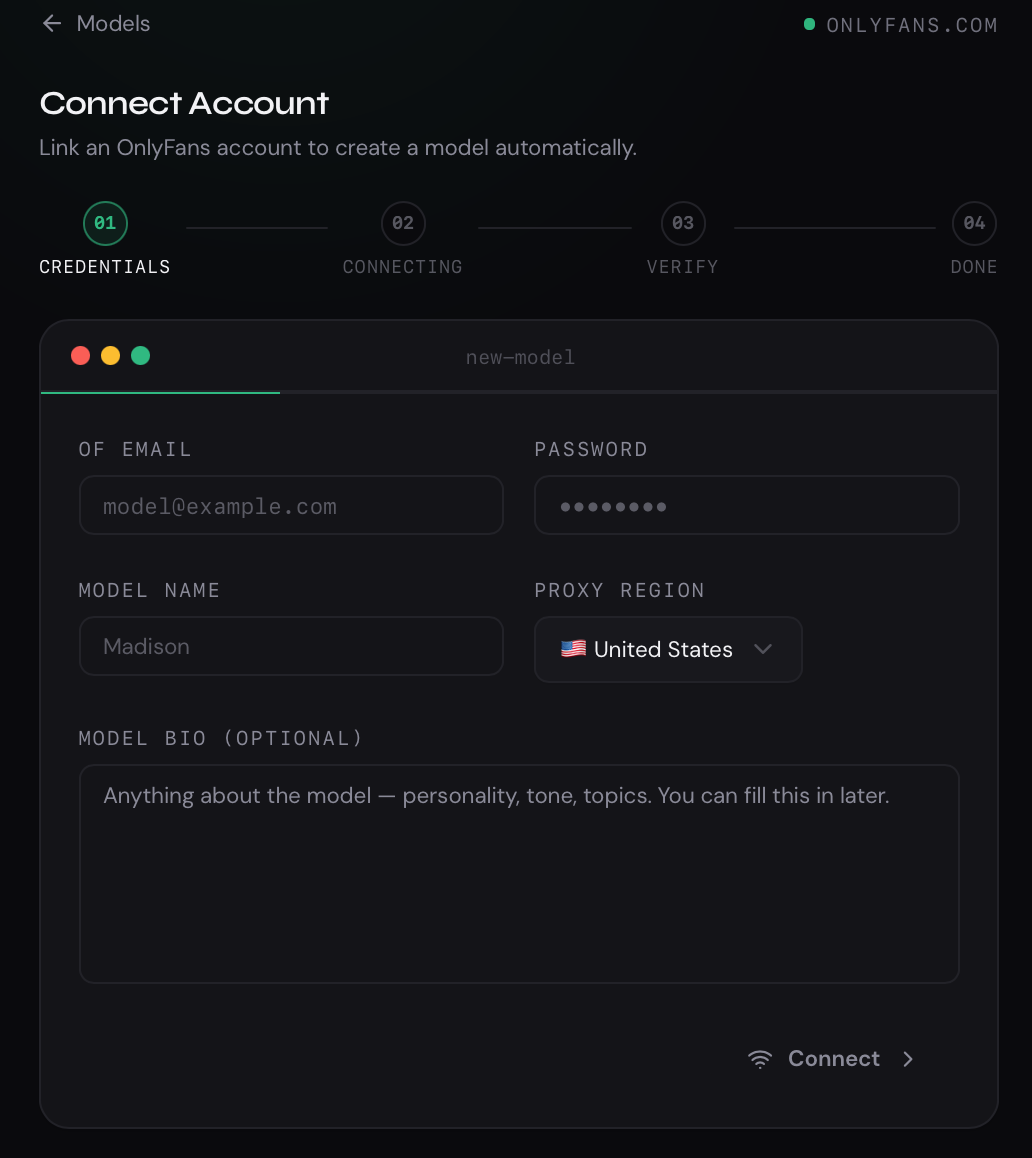
Fill in the connection form:
- Model name — a label used inside OnlyAI (doesn’t affect the OnlyFans profile).
- OnlyFans email — the login email for this account.
- OnlyFans password — the account password.
- Proxy region — choose UK or US based on the account’s typical location.
- Bio (optional) — a short description the AI can reference when chatting.
-
Click Connect. OnlyAI will attempt to sign in to OnlyFans and initialize the connection.
Handling verification steps
Section titled “Handling verification steps”OnlyFans may require additional verification during the connection attempt. Two scenarios are possible:
Two-factor authentication (2FA)
Section titled “Two-factor authentication (2FA)”If the account has 2FA enabled, a code entry field will appear. u the email or authenticator app linked to the OnlyFans account, then enter the code and confirm.
Face verification
Section titled “Face verification”Some accounts require face verification before OnlyAI can access them. If this happens:
- A verification URL will be displayed in the wizard.
- Copy the URL and open it in your browser.
- Complete the face scan on the OnlyFans website.
- Return to the OnlyAI wizard and click Resume to continue the connection.
Video Guide How to Add a Model | OnlyAI
Section titled “Video Guide How to Add a Model | OnlyAI”🔗 https://youtu.be/K2MTCC2LqBc?si=4H-W4eEalusdptTj
After connecting
Section titled “After connecting”Once the connection succeeds, you’ll be taken to the new model’s Overview page. From there you can:
- Configure the AI persona in Profile.
- Set up your Content library.
- Enable the Welcome Flow.
- Turn on automation in Settings.
Resuming a failed attempt
Section titled “Resuming a failed attempt”If the connection was interrupted (e.g. you closed the tab), you can resume it by navigating back to Add Model and using the attempt dropdown to pick up where you left off.