Chats Overview
Accessing chats
Section titled “Accessing chats”There are two ways to open the chats inbox:
- From the agency sidebar — click Chats under Operations. You’ll be asked to pick a model first, then you’ll be taken to that model’s inbox.
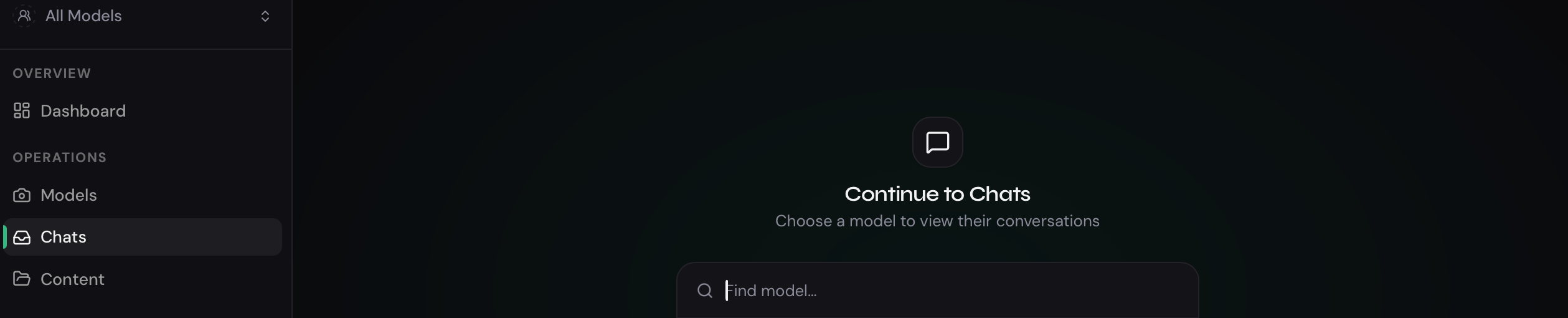
- From within a model — click the Chats tab in the model sidebar. This takes you directly to that model’s conversation list.
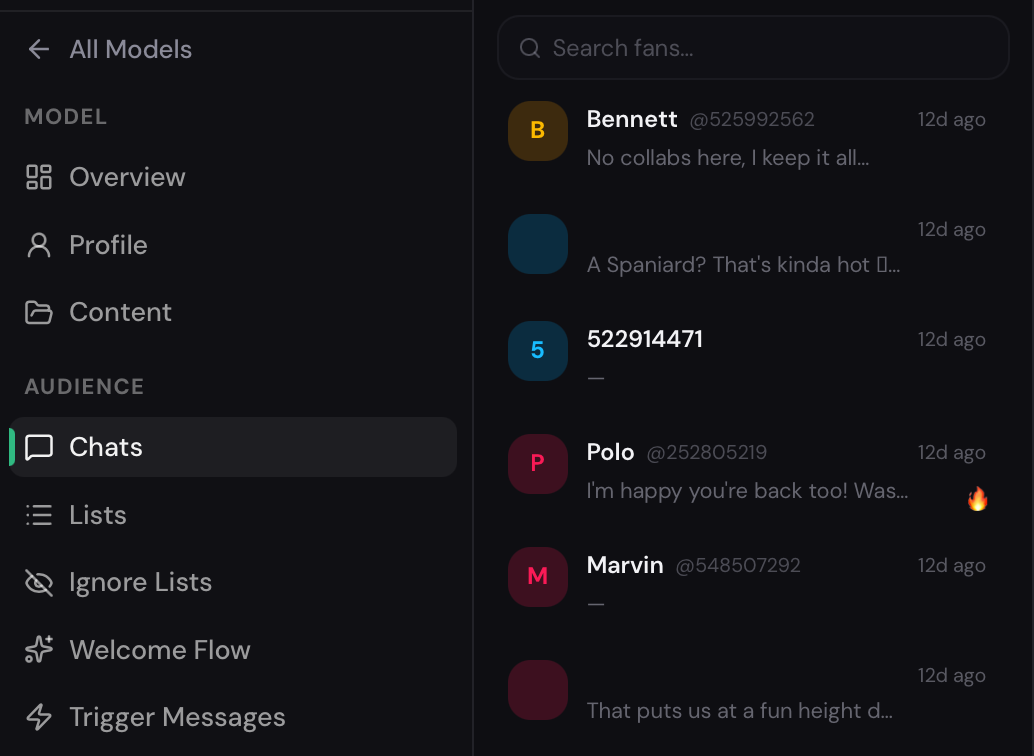
Conversation list
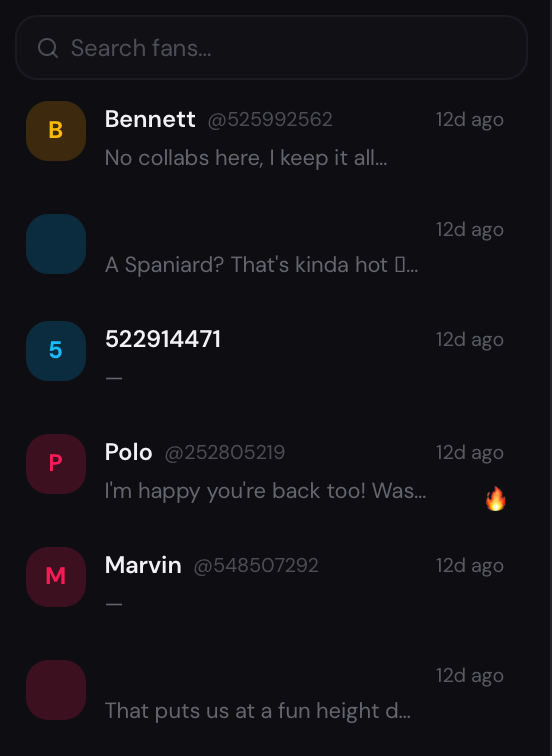
Section titled “Conversation list”The left panel shows all fan conversations for the selected model, ordered by most recent activity. Each entry shows:
- Fan name or ID
- Last message preview
- Timestamp
Scroll down to load more conversations (the list is infinite-scrolling).
Use the search field at the top of the list to filter conversations by fan name.
Conversation thread
Section titled “Conversation thread”Click any conversation in the list to open the full message thread on the right.
The thread shows:
- All messages in chronological order, clearly labeled as fan messages or model responses.
- PPV messages inline within the thread, so you can see exactly when and what content was sent.
Sending a message
Section titled “Sending a message”Type in the message field at the bottom of the thread and press Enter (or click Send) to send a message manually.
Translation
Section titled “Translation”If a fan writes in a different language, use the Translation language selector (shown near the conversation header) to translate messages into your preferred language. This is for your reading convenience — it doesn’t change what’s sent to the fan.

At the top of the conversation, information about the selected fan is displayed, along with additional actions for managing the chat.The Stop Bot button allows you to stop AI responses only for a specific conversation without disabling the bot for the entire model. After that, AI will no longer reply in this chat, and the conversation can be continued manually.
Deep-linking to a specific fan
Section titled “Deep-linking to a specific fan”Several parts of the dashboard link directly to a fan’s conversation with a pre-selected context:
- Clicking a fan row in the Analytics PPV table.
- Clicking Chat from a content request in AI Tasks.
- Clicking a fan link in Change Logs.
These links open the Chats page for the correct model and scroll directly to that fan’s conversation.
- If a conversation shows unexpected behavior, check the Change Logs to see if any settings changed recently.
- To pause responses for a specific model, toggle Active to OFF in the model’s Controls.